In 2026, many businesses struggle with website tracking. Ad blockers stop almost 30% of tracking, privacy rules keep changing, and broken tags often give wrong or missing data. The result? Lost sales and poor marketing decisions.
Google Tag Manager, also known as GTM, solves this problem. It is a free tool from Google that lets you add, update, and manage all your tracking codes from one easy dashboard, without editing your website code again and again.
More than 46% of websites now use Google Tag Manager because it makes tracking simple, fast, and reliable.
In this complete guide, we will explain what Google Tag Manager is, how it works, its main benefits, and how to set it up properly.
What is Google Tag Manager?
Google Tag Manager (GTM) is a free tool from Google that lets you add and manage tracking scripts on your website, without touching the code every time.
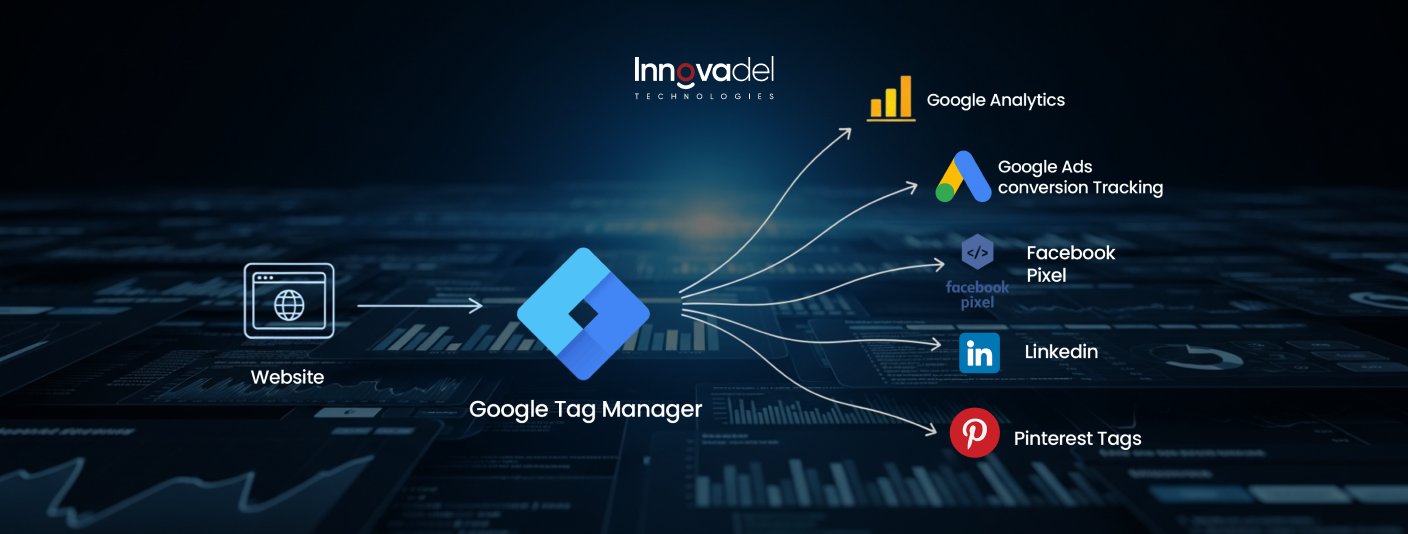
In simple terms, GTM acts as a middleman between your website and all your marketing tools. Instead of asking a developer to manually insert every tracking pixel or analytics snippet, you do it yourself, directly from the GTM dashboard.
Once GTM is installed on your site (just once), you can add, edit, or remove tools like Google Analytics, Google Ads, Meta Pixel, Hotjar, LinkedIn Insight Tag, and dozens more, all in one place.
| Did You Know? GTM was launched by Google in October 2012. It started as an enterprise-only tool and became free for everyone in 2014.
|
How Does Google Tag Manager Work?
When you sign up for GTM, it gives you a small piece of code called a container snippet. You paste this code into your website once, and that’s it. From that point, you never need to touch your website’s code again for tracking.
Everything else happens inside the GTM dashboard.
To understand how GTM works, you need to know three simple things: Tags, Triggers, and Variables.
1. Tags — What You Want to Track
A tag is basically any tracking script you want to add to your website.
For example:
- Google Analytics — to track your website visitors
- Google Ads — to track conversions from your ads
- Facebook Pixel — to run retargeting campaigns
- Hotjar — to record user sessions and heatmaps
Before GTM, you had to paste each of these scripts manually into your website. With GTM, you just add them as tags inside the dashboard, no coding needed.
2. Triggers — When Should the Tag Fire?
A trigger tells GTM when to run a tag.
Every tag needs a trigger. Without it, the tag just sits there and does nothing.
Some simple examples:
- Fire the tag when any page loads
- Fire the tag when someone clicks a button
- Fire the tag when someone submits a form
- Fire the tag when someone scrolls halfway down the page
Real example: You want to know every time someone clicks your “Get a Quote” button. You set up a Click trigger on that button and attach it to your Google Ads tag. Now every click gets recorded — automatically.
3. Variables — Information That Helps Tags Work
Variables are pieces of information that GTM collects and uses in the background. Think of them as labels that help GTM understand what’s happening on the page.
For example:
- What is the current page URL?
- What text did the user click on?
- Which form did they submit?
- How far did they scroll?
GTM uses this information to make your tags smarter and more accurate.
The Data Layer — The Most Powerful Part of GTM
Most beginner guides skip this, but it’s important.
The Data Layer is like a messenger between your website and GTM. Your website sends information to the Data Layer, and GTM reads it and uses it to fire the right tags.
A simple example: A customer places an order on your website. Your website sends the order details, like the order value and product name, to the Data Layer. GTM picks this up and sends it to Google Analytics and Google Ads automatically.
Without the Data Layer, GTM can only see basic things like page URLs and button clicks. With it, you can track detailed information like purchase amounts, product names, and customer types.
So in short, GTM is one container on your website, three simple building blocks, and a powerful Data Layer that ties it all together.
Top Benefits of Using Google Tag Manager in 2026
Still adding tracking codes manually to your website? Or waiting on a developer every time you need to make a small change?
GTM fixes both of those problems. Here’s why so many marketers and businesses use it.
1. No Developer Needed
This is the biggest one. Every time you wanted to add a new pixel or update a tracking script, you had to raise a ticket and wait. Sometimes days. Sometimes weeks.
With GTM, you do it yourself. Log in, make the change, publish. That’s it.
2. Everything in One Place
Without GTM, your tracking scripts are scattered all over your website, in the header, footer, and page templates.
GTM puts everything in one dashboard. Google Analytics, Facebook Pixel, Google Ads, Hotjar, all in one place. Much easier to manage and keep track of.
3. Test Before You Publish
GTM has a Preview Mode that lets you test any change on your website before it goes live. You can see exactly which tags fired, when they fired, and whether they worked. No guessing. No surprises.
This alone saves a lot of headaches.
4. Undo Any Mistake Instantly
Every time you publish a change, GTM saves it as a new version. If something goes wrong, just go back to the previous version. One click and you’re back to where you were. No need to remember what you changed.
5. It’s Free
GTM is completely free. No monthly fee, no usage limit, nothing. You get all the features, tags, triggers, preview mode, version history, user permissions, at zero cost.
6. It Won’t Slow Down Your Website
GTM loads in the background without blocking your page. So your website speed stays the same. Just don’t overload your container with too many unnecessary scripts. Keep it clean, and it won’t cause any issues.
7. Control Who Can Make Changes
Not everyone on your team should be able to publish changes to your live website. GTM lets you set permission levels. Some people can create tags but not publish them. Others can only view. Only the people you trust get full access.
8. Track Clicks, Forms, and Scrolls — Without Code
Want to track when someone clicks a button or submits a form? You can do that inside GTM without touching any code. Using built-in triggers, you can set up event tracking in a few minutes. No developer. No custom scripts.
9. Works With Pretty Much Every Tool
Google Analytics, Google Ads, Facebook, LinkedIn, TikTok, Hotjar, HubSpot, GTM works with all of them. There’s also a Template Gallery inside GTM with hundreds of ready-made tags from popular tools. So you don’t have to build everything from scratch.
10. Better Tracking With Server-Side Tagging
This is a big one for 2026. Normal tracking runs in the user’s browser. The problem is that ad blockers and browser privacy settings can stop your tags from firing, which means missing data.
Server-side tagging moves the tracking to a server instead. Ad blockers can’t touch it. Your data is cleaner and more accurate.
With cookies going away and privacy rules getting tighter, this is becoming the new standard for anyone serious about tracking.
Who Needs Google Tag Manager Services?
GTM is useful for anyone who has a website and wants to track what’s happening on it. It doesn’t matter if you’re a solo blogger or a large business.
Here’s who benefits from it the most.
1. Marketers
If you run ads on Google, Facebook, or TikTok, you need tracking pixels on your website. GTM lets you add and manage those pixels yourself. No developer needed. No waiting around.
2. Business Owners
Want to know where your customers come from and what they do on your website? GTM helps you collect that data properly. Everything stays in one place, and nothing gets missed.
3. Web Analysts
Analysts need clean, accurate data. GTM gives them full control over what gets tracked and how, without depending on a developer for every small change.
4. E-commerce Stores
If you sell online, tracking is everything.
GTM makes it easy to track purchases, add-to-cart events, and product views, and send that data to Google Analytics, Google Ads, and Facebook at the same time.
It works with Shopify, WooCommerce, and most other platforms.
5. Digital Agencies
Agencies manage tracking for multiple clients at once.
GTM keeps everything organized. One account, multiple client containers, easy version history, and permission controls so clients can’t accidentally break anything.
6. SaaS and Lead Generation Businesses
If your goal is leads or sign-ups, you need to track every step of that journey.
GTM lets you track form submissions, button clicks, and page visits, then sends that data to your analytics and ad platforms so you can improve your campaigns.
7. Bloggers and Content Creators
Even a simple blog benefits from GTM.
You can track scroll depth, link clicks, and time on page, useful data for understanding what content is actually working. And since it’s free, there’s no reason not to use it.
8. Developers
GTM actually saves developers time. Set up the container and Data Layer once, then hand off all the day-to-day tag management to the marketing team. No more interruptions for small tracking requests.
Step-by-Step: How to Set Up Google Tag Manager?
Setting up GTM is easier than it looks. You don’t need any coding experience. Just follow these steps and you’ll have it running in under 30 minutes.
Step 1: Create a GTM Account
Go to tagmanager.google.com and sign in with your Google account.
Then:
- Click Create Account
- Enter your company or website name
- Select your country
- Click Continue
Step 2: Set Up Your Container
A container holds all your tags for one website.
- Enter your website URL as the container name
- Select Web as the target platform
- Click Create
- Accept the Terms of Service
Done. Your container is ready.
Step 3: Install the GTM Code on Your Website
GTM will give you two small pieces of code to add to your website.
- Code 1 — goes inside the head section of every page
- Code 2 — goes just after the opening body tag of every page
You only do this once. After that, everything else is managed inside GTM.
On WordPress:
- Install the Insert Headers and Footers plugin
- Paste Code 1 in the header section
- Paste Code 2 in the body section
- Save
On Shopify:
- Go to Online Store then Themes
- Click Edit Code
- Open the theme.liquid file
- Paste Code 1 before the closing head tag
- Paste Code 2 after the opening body tag
- Save
On any other website:
Paste Code 1 in the head section and Code 2 in the body section of your base template file.
Step 4: Check GTM Is Working
Before anything else — make sure GTM is installed correctly.
- Install the Google Tag Assistant extension on Chrome
- Visit your website
- Click the Tag Assistant icon in your browser
- If you see a green tick next to your GTM ID — it’s working
Step 5: Create Your First Tag
The most common first tag is Google Analytics 4.
You’ll need your GA4 Measurement ID first. Find it in Google Analytics under Admin — Data Streams.
Inside GTM:
- Click Tags then New
- Click Tag Configuration
- Select Google Tag
- Enter your GA4 Measurement ID
- Click Triggering and select All Pages
- Name your tag — for example “GA4 Configuration”
- Click Save
Step 6: Test Your Tag
Always test before you publish.
- Click Preview in the top right corner of GTM
- Enter your website URL and click Connect
- Browse around your website
- Check that your GA4 tag is firing on every page
If it is, you’re ready to go live.
Step 7: Publish
- Click Submit in the top right corner
- Give your version a name, for example, “Added GA4 Tag.”
- Click Publish
Your tag is now live. Google Analytics will start collecting data right away.
Common Mistakes to Avoid
A few things that trip people up when setting up GTM for the first time:
- Installing the code twice: Check, that GTM isn’t already installed on your website before adding it again. Having it twice causes duplicate data.
- Wrong Container ID: Double-check that the GTM code on your website matches your Container ID in the dashboard.
- Publishing without testing: Always use Preview Mode before hitting publish. It saves a lot of headaches later.
- Missing the body snippet: A lot of people only install the head snippet and forget the body one. Install both.
- Not checking with Tag Assistant: Always verify the installation is working before you start creating tags.
Google Tag Manager vs Alternatives – Which Should You Choose?
Google Tag Manager is the most popular tag management tool in the world. In 2026, it is used on 46.6% of all websites and holds over 99.7% of the tag manager market share.
But is it always the best choice? Sometimes another tool might be better, depending on your business size, budget, and needs.
Here’s a simple comparison of the main alternatives in 2026:
| Tool | Best For | Pricing | Server-Side Tagging | Privacy Focus | Ease of Use | Good For UK SMBs? |
| Google Tag Manager | Most businesses, Google tools | Completely Free | Yes (strong) | Good (with Consent Mode v2) | Easy-Medium | Yes – Best choice for most |
| Tealium iQ | Large enterprises | Expensive (custom) | Yes | Very High | Medium-Hard | Only if you have big budget |
| Adobe Experience Platform Tags | Companies already using Adobe | Included with Adobe | Yes | High | Medium-Hard | If you use Adobe tools |
| Matomo Tag Manager | Privacy-focused businesses | Free (self-hosted) or low cost | Limited | Excellent | Medium | Yes – Great for strong privacy needs |
| Twilio Segment | Customer data platforms | Starts from ~$120/month | Yes | Good | Medium | Good for growing SaaS businesses |
How to Add & Manage Popular Tags in GTM
GTM is installed. Now let’s add your tracking tags. Here’s how to set up the most popular ones.
1. Google Analytics 4 (GA4)
GA4 is the first tag most people add in GTM.
Step 1 — Get your GA4 Measurement ID
Go to Google Analytics — Admin — Data Streams — click your website. You’ll see a Measurement ID that starts with G- . Copy it.
Step 2 — Set up the tag in GTM
- Click Tags then New
- Click Tag Configuration
- Select Google Tag
- Paste your Measurement ID
- Click Triggering and select All Pages
- Name it “GA4 – Configuration”
- Click Save
Done. GA4 will now track every page view on your website.
Want to track specific actions?
You can also track things like button clicks, form submissions, and purchases. These are called events.
Example — someone clicks your “Get a Quote” button:
- Create a new tag
- Select GA4 Event
- Enter an event name like “quote_button_click”
- Create a Click trigger on that button
- Save and test
That click will now show up in your GA4 reports.
Enhanced Measurement — turn it on
GA4 has a built-in feature that automatically tracks scrolls, file downloads, video plays, and outbound clicks — with no extra tags needed.
Turn it on in Google Analytics — Admin — Data Streams — click your website — switch on Enhanced Measurement.
2. Google Ads Conversion Tracking & Remarketing
Running Google Ads? You need to track which clicks are turning into sales or leads.
Conversion Tracking:
Get your details from Google Ads first:
- Go to Google Ads — Tools — Conversions
- Click your conversion
- Copy the Conversion ID and Conversion Label
In GTM:
- Create a new tag
- Select Google Ads Conversion Tracking
- Enter your Conversion ID and Label
- Set the trigger to fire on your thank you page
- Save and test
Now every completed conversion gets recorded in Google Ads.
Remarketing:
This lets you show ads to people who already visited your website.
- Create a new tag
- Select Google Ads Remarketing
- Enter your Conversion ID
- Set trigger to All Pages
- Save and publish
Google Ads will now build your audience automatically.
3. Meta (Facebook) Pixel
The Meta Pixel tracks what people do on your website after clicking your Facebook or Instagram ads.
Basic setup:
Get your Pixel ID from Meta Events Manager.
In GTM:
- Create a new tag
- Search for Meta Pixel in the Community Template Gallery
- Enter your Pixel ID
- Set trigger to All Pages
- Name it “Meta Pixel – Base Code”
- Save and test
Tracking purchases:
- Create a new tag
- Select Meta Pixel from the gallery
- Choose Purchase as the event
- Add order value and currency
- Set trigger to fire on your order confirmation page
- Save and test
4. TikTok Pixel
- Get your Pixel ID from TikTok Ads Manager — Assets — Events
- In GTM search for TikTok Pixel in the Community Template Gallery
- Enter your Pixel ID
- Set trigger to All Pages
- Save and publish
5. LinkedIn Insight Tag
- Get your Partner ID from LinkedIn Campaign Manager — Account Assets — Insight Tag
- In GTM search for LinkedIn Insight Tag in the Community Template Gallery
- Enter your Partner ID
- Set trigger to All Pages
- Save and publish
6. Hotjar
- Get your Site ID from Hotjar — Settings — Tracking Code
- In GTM search for Hotjar in the Community Template Gallery
- Enter your Site ID
- Set trigger to All Pages
- Save and publish
Any Other Tool — Custom HTML Tag
If a tool isn’t in the gallery just add it manually.
- Create a new tag
- Select Custom HTML
- Paste the tracking code from your tool
- Set your trigger
- Save and test
This works for any tool that gives you a JavaScript snippet.
Conclusion
Google Tag Manager is a simple yet powerful free tool that makes website tracking easier and more reliable. It helps you manage all your tags in one place, saves time, improves your data, and keeps everything compliant in 2026.
If you want accurate tracking without the hassle, GTM is the best place to start.
Ready to set up Google Tag Manager the right way?
Get in touch with Innovadel Tech, our Google Tag Manager experts will help you with setup, auditing, or full implementation.
Book a free consultation today and let’s make your tracking clean, fast, and effective.
FAQs
Is Google Tag Manager a tracker?
No. Google Tag Manager is not a tracker itself. It is a free management tool that helps you organise and run other tracking codes, such as Google Analytics or advertising pixels. It simply delivers the tags you choose, it doesn’t collect data on its own.
What are alternatives to Google Tag Manager?
The main alternatives are Tealium, Adobe Experience Platform Tags, Matomo Tag Manager, and Twilio Segment. In 2026, Google Tag Manager is still the most popular choice because it’s free, powerful, and easy to use for most UK businesses.
How do I know if my Google Tag Manager is working?
The easiest way is to use GTM’s built-in Preview mode. Click “Preview”, visit your website, and you’ll see live which tags are firing. You can also use the free Google Tag Assistant tool for a quick check.
Is gtag a replacement for Google Analytics?
No. gtag.js is just a simple script to send data to Google products like GA4 or Google Ads. It is not a full replacement for Google Analytics. Most businesses use Google Tag Manager together with GA4 for better flexibility and control.
What is Google Tag Manager used for?
Google Tag Manager is used to add, update, and manage all your website tracking codes — such as analytics, advertising pixels, chat tools, and custom events, from one single dashboard without editing your website code every time.
What can you track with Google Tag Manager?
You can track almost anything: page views, button clicks, form submissions, scroll depth, video plays, purchases, lead forms, and custom user behavior. It works especially well for e-commerce and lead generation tracking.
Why would someone use Google Tag Manager?
People use it to save time, avoid asking developers for every change, improve data accuracy, and make their website faster. In 2026, over 46% of all websites use Google Tag Manager because it makes tracking simple and flexible.
Why does Google Tag Manager keep trying to track me?
Google Tag Manager doesn’t track you by itself. It only runs the tracking tags that you or your team have added (like analytics or ads). You have full control, you can turn tags on or off anytime inside your GTM account.
What data can be tracked with a Tag Manager?
You can track user activity on your site, such as which pages they visit, what they click, what they buy, and their consent choices. With server-side tagging, you can also track data more privately and securely.
Does Google Tag Manager still work?
Yes, it works very well in 2026. It continues to be the most widely used tag manager in the world, with nearly 99.7% market share among all tag management systems.
Where is Google Tag Manager and where do I find my Google Tag Manager ID?
You can access Google Tag Manager by going to tagmanager.google.com. Once you log in and open your container, your Google Tag Manager ID (which starts with GTM-XXXXXX) is clearly shown at the top of the page.
Where to add Google Tag Manager code in WordPress?
In WordPress, paste the first code snippet as high as possible in the head section and the second code right after the opening body tag. The easiest way is to use a free plugin like “Insert Headers and Footers”. Put the first code in the Header and the second in the Body.
When was Google Tag Manager released or launched?
Google Tag Manager was officially launched in October 2012. It has since become the most popular tag management tool used by millions of websites worldwide.
When to use Google Tag Manager?
Use Google Tag Manager when you have multiple tracking tools like Google Analytics, Google Ads, or Meta Pixel. It’s especially useful if you want to make changes quickly without needing a developer every time or if you need better control over your tracking and privacy.
Does Google Tag Manager still work in 2026?
Yes, it works very well in 2026. It is actually more powerful now with server-side tagging and better privacy features. It remains the best choice for most businesses.
How do I know if my Google Tag Manager is working?
The easiest way is to use the Preview mode inside Google Tag Manager. Click Preview, visit your website, and you’ll see exactly which tags are firing in real time.